Group consults
Why group consults matter
Group consults let you run a virtual or in-person session with more than one patient at a time, whether you're facilitating a semi-private workout, a post-op cohort, or a shared rehab program. Embodia keeps scheduling, charting, and billing for the whole group in one workflow, so you're not repeating the same admin steps for every participant.
Group consults are available on Tier 2 and Tier 3 memberships. Tier 2 covers virtual group consults; Tier 3 adds in-person group consults along with a fuller set of automation and online booking tools, covered below.
What you need before scheduling
Note: Telerehab group consults require a Premium Zoom for Healthcare Telerehab account obtained separately through Zoom or a Google Meet account connected with your Embodia account.
You can learn to connect your Zoom account in the help article, Connecting your own Zoom account to Embodia.
You can learn to connect your Google Meet account in the help article, Activating Google Meet.
For Tier 2 memberships
Once your Zoom for Healthcare or Google Meet account is connected and you would like to schedule a group consult, navigate to the profile of one of the participating patients.
Click on Schedule a consult and then on Group consult.

Complete the consult details as you would for a regular one-on-one consult.
For Tier 3 memberships
Scheduling a group consult
Click on Schedule a consult and then select the service. If you are scheduling a virtual consult, make sure to select the Premium Zoom account or the Google Meet account as the telerehab account. Once the consult is scheduled, scroll to the bottom of the page and click on Turn into a group consult:

To add more participants to the group consult, on the consult page, click Manage participants.

You will be redirected to the participant management page. On the left-hand side, search for your existing patients. You can add a participant to the consult by clicking on the Add icon (+ sign).

You will now see all participants you added in the right-hand column, Current Participants. When a patient is added, they will automatically receive an email with the consult details.

To remove a participant from the group consult, click on the Remove icon (red X icon). The removed participant will receive an email informing them that the consult has been cancelled.
Note: The consult must have at least one participant. You will not be able to remove the last participant. If you want to cancel the consult, scroll to the bottom of the page and click Go to consult page, and cancel the consult there.

On the consult page, you will see the list of participants you have added to your group consult and if they have consented to the consult (if you attached a consent form) (#1 in the image below).
You will also be able to resend the consult details to each participant by clicking on the Envelope icon next to their name (#2 in the image below).
A reminder email with the consult details will automatically be sent to each participant prior to the appointment.

Enabling group consults in online booking (Tier 3)
Tier 3 memberships can let patients book a spot in a group consult directly through online booking.
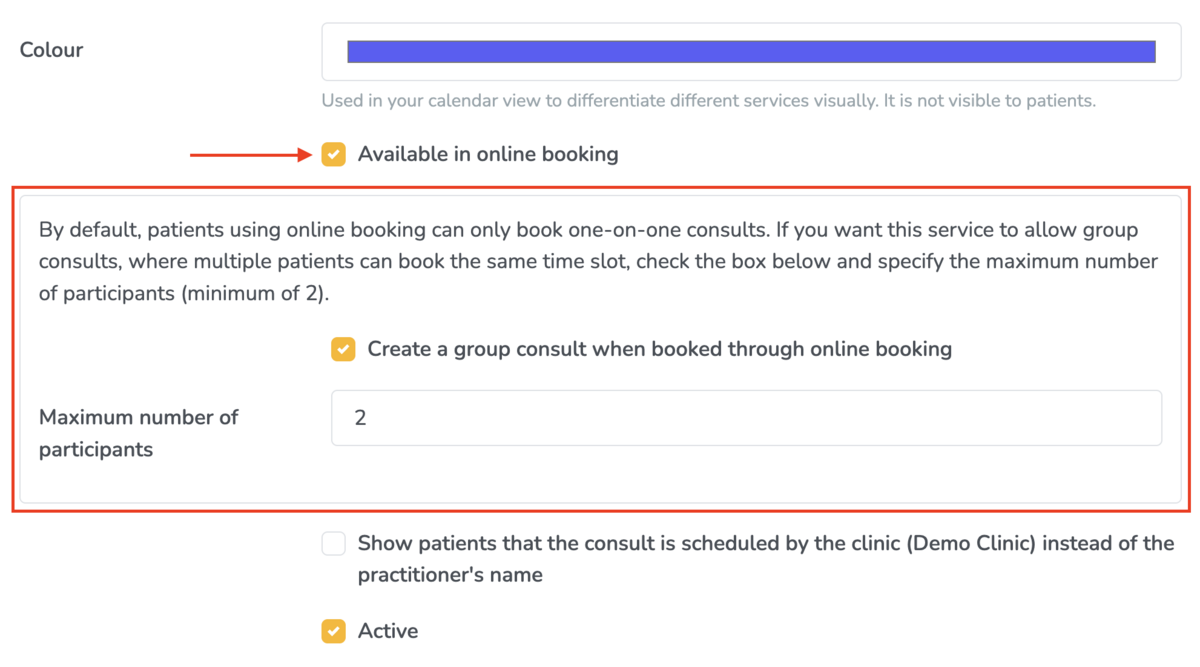
- Go to Settings > Scheduling settings > Our services.
- Select the group consult service.
- Scroll down to the Available in online booking checkbox and check it.
- Checking this box opens an additional section where you configure how a group consult is created when a patient books it online.